Glossary | Contact US | Sitemap
International: English | 日本語 | Deutsch | Français

Home > Guide > MKV Video Converter Guide

How to convert MKV to XviD with MKV to XviD Converter?

What you need?
Introduction
Step 1: Load files
Step 2: Choose outputs
Step 3: Start conversion


What you need?

Software: 4Videosoft MKV Video Converter
OS Supported: Windows NT4/2000/2003/XP and Windows Vista, Windows 7
Hardware Requirements: 800MHz Intel or AMD CPU, or above; 512MB RAM or more


Introduction:

To convert MKV files to XviD, MKV to XviD Converter can be the best option for you. It is a great invention for users who want to watch the MKV videos on their portable media players like iPhone, iPod, Zune, etc because it is an ultimate solution in converting MKV to XviD and other popular files format like AVI, ASF, MPEG, FLV, WMV, MP4, MP3...

What are the steps to convert MKV to XviD using MKV to XviD Converter? This guide tells you how to convert MKV to XviD with 4Videosoft MKV Video Converter, which is an easy-to-use tool for converting MKV to lossless audio and almost all popular video formats.

Tips: What's MKV video format?

An MKV file is a Matroska file, the Matroska Multimedia Container is an open standard free Container format. It is similar in conception to other containers like AVI, MP4 or ASF, but is entirely open in specification, with implementations consisting mostly of open source software. Matroska file types are .MKV for video (with subtitles and audio), .MKA for audio-only files and .MKS for subtitles only.

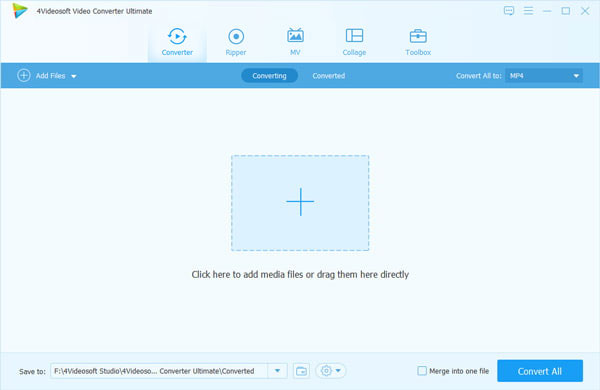
Free download this tool. Install and run it. The screenshot is like this:

Step 1: Load files

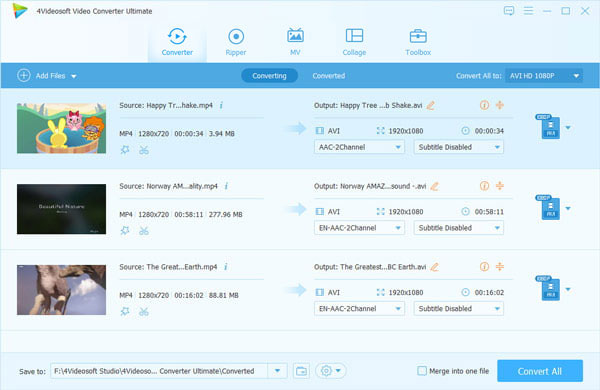
Click on “Add file” button and navigate to your target files. When the selected MKV files are imported they will be shown on the file list.

Step 2: Choose outputs

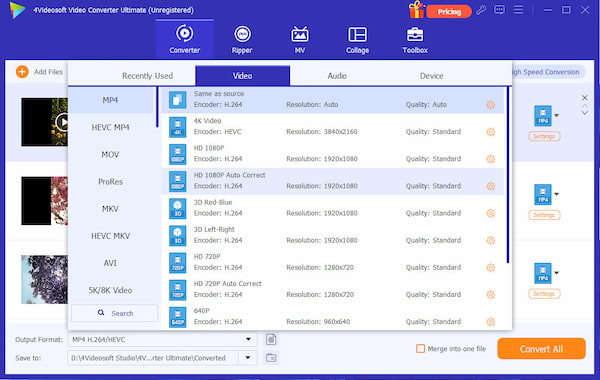
Click on Profile bar, select “XviD Video” from the format list and then click on the Browse button to specify the output folder.

Selective:

1. Click Snapshot button to take a snapshot when playing the video and save them as picture format.

2. Click Trim to open the Video Edit window, and choose one of the steps below to capture a clip from the selected video file.

Drag scissors below the Preview Windows to mark the beginning of your clip and the end of your clip when you preview.
Click left square brackets to set the start time and click right square brackets to set the end time.
Input certain time number in Start Time and End Time fields manually and click "OK".


Step 3: Start conversion

Click on the “Start” button and the program will convert MKV videos to XviD for you in a few minutes. Then you can enjoy footage with lossless high quality on portable players.

MKV Related Guides