


4 Steps to Convert MP4 to AVC

MP4 to AVC Converter is one of the best AVC converting software mainly designed to convert MP4 to AVC. Besides, this MP4 to AVC Converter can be applied to convert other videos to AVC format, like MOV, VOB, MKV, WMV...Moreover, apart from converting multi-videos to AVC format, it also enables users to set more parameters and edit video effects, and so on. In a word, MP4 to AVC Converter with so fabulous converting and editing function is bound to be your choice to convert MP4 to AVC.
 Convert MP4 to AVC
What you need?
AVC Converter.Part 1. Step-By-Step to Convert MP4 to AVC
Step 1Add MP4 videos from "Add Files"
First launch and run MP4 to AVC Converter, and you will see the following interface:
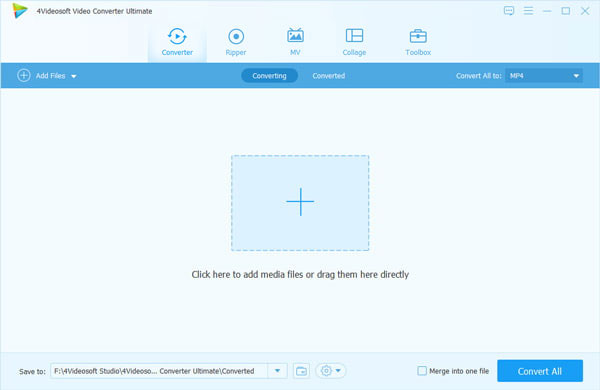
Then you can click "Add Files" to add MP4 videos you want to convert.
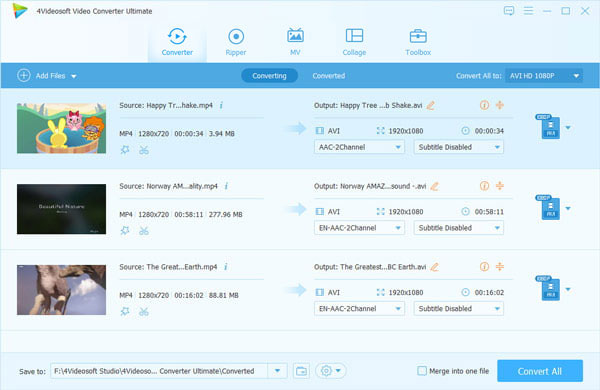
Step 2Choose AVC
Click "Convert All to" or the format icon, and then select MP4 under Video tab as the output format. Here you need to choose the one with H.264 encoder.
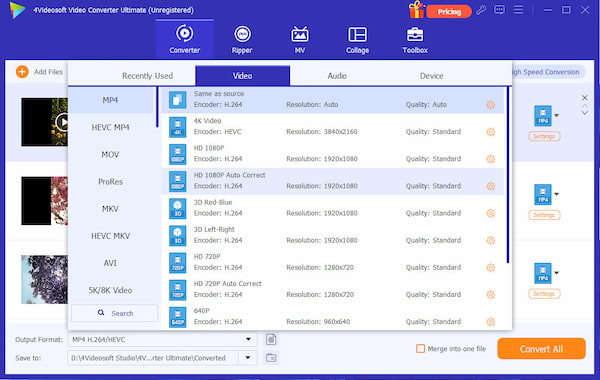
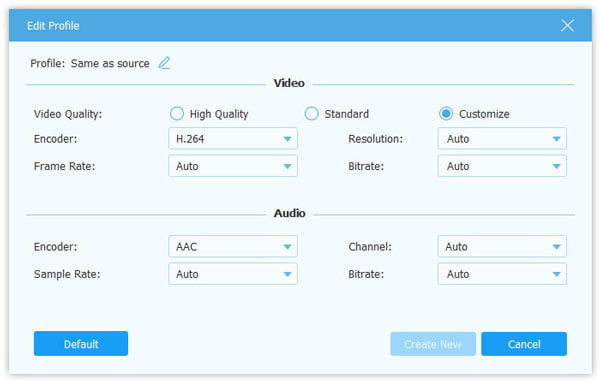
Step 3Set detailed parameters from "Custom Profile"
Click "Custom Profile" and you can set more parameters, like encoder, frame rate, aspect ratio, resolution, video bitrate, etc.
Step 4Convert MP4 videos to AVC by "Convert All"
Just click "Convert All", and you can complete this converting procedure to convert MP4 video to AVC.
Part 2. FAQs of MP4 to AVC
- What is MP4 AVC?
Advanced Video Coding (AVC), also referred to as H.264 or MPEG-4 Part 10, Advanced Video Coding (MPEG-4 AVC), is a video compression standard based on block-oriented, motion-compensated integer-DCT coding.
- Does Windows 11/10 have a video converter?
Yes. Windows Media Player is a built-in DVD to music converter. It can rip DVD to MP3, WAV, FLAC, and ALAC.
- How do I convert AVCHD files?
To convert AVCHD files, you need an AVCHD video converter. AnyMP4 Video Converter Ultimate is an AVCHD video converter. Just run this AVCHD converter, add the AVCHD videos into this tool, choose the output format, and click Convert All to start AVCHD video conversion.
 AVI to MPEG4 – Convert AVI to MPEG4 on PC and Mac
 How to Convert 4K UHD&1080p HD to MPEG4
 How to Convert DVD DAT to VOB


