
As Mac users, you know Apple products such as Mac computer, iPhone, iPad can only support limited video format like MOV, MP4, etc. Since there are lots of video formats around, you would need to convert any video on Mac to be playable, editable and more. In this article, let's see how to use three quick and painless ways to convert any videos on your Mac computer.
Since QuickTime is the default media player on Mac OS X/11, you can easy use it to convert videos into Mac compatible format without extra software. You can use it to export video to specific destination format like iTunes, optimize a video for the web or use regular export dialog to export to a more general format.
Step 1 Click "File" from the QuickTime menu bar and choose "Open File" to import the video file you want to convert. Select "Export To" to export your video to a specific format destination, like Web, iTunes or iMovie.
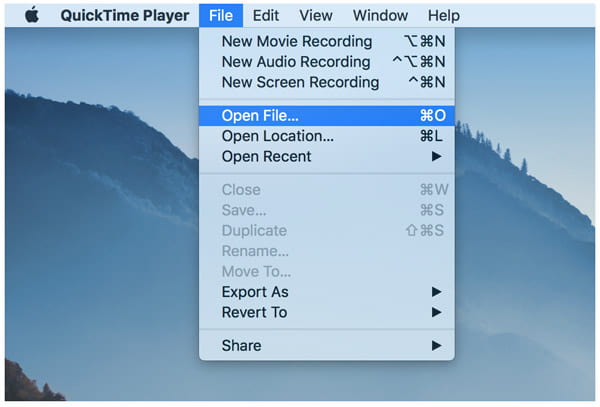
Step 2 After selecting, you will get a dialog giving you options for the format destination you selected. You can also choose "Export" and get more general format options.
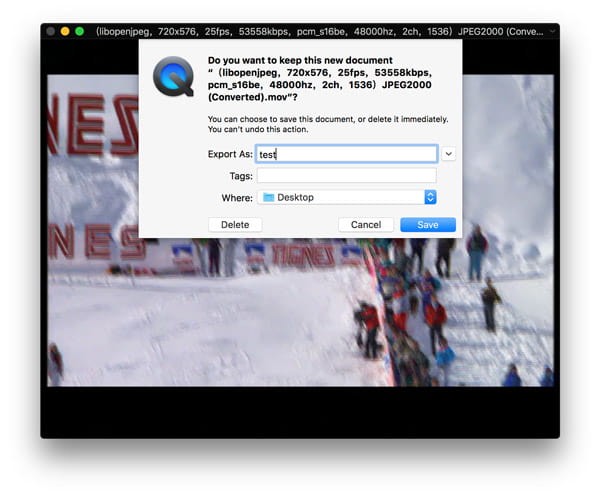
It is easy, right? However, QuickTime also only support the video formats which are compatible with Mac system first. So you may not be able to convert WMV, MKV, AVI, etc. video file with QuickTime player.
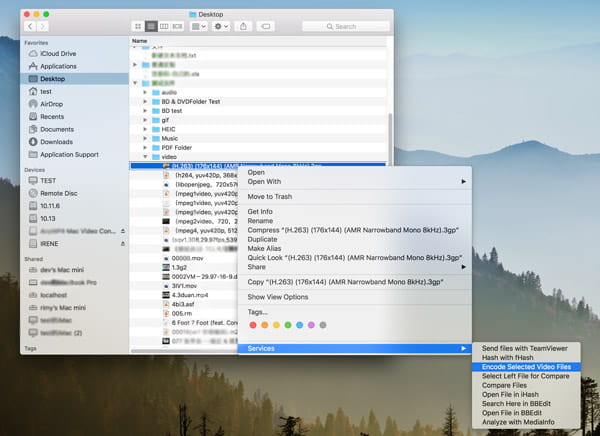
There is a quicker way to convert videos than QuickTime. If you right click on a video file inside of Finder, you can see the option to "Encode Selected Video Files".
Step 1 Just right click a video file and choose "Encode Selected Video Files" to let you convert video from within finder.
Step 2 The pop-up window of "Encode Media" will allow you to set the format and quality settings you want for the new video file. Then click "Continue" to convert the video file directly.
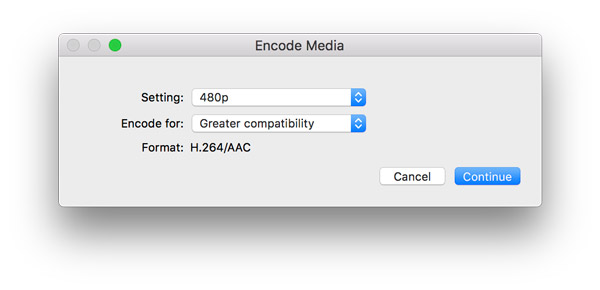
Within Finder built-in conversion, you do not need to open any software. Of course, the drawback of the method is also the same as QuickTime player being limited in supporting Mac system compatible formats.
If you just get the video files which are not compatible with Mac system, what can you do? You cannot convert them by using the above 2 ways. Then you may need to use a professional video converter which can help you convert any video format on Mac. Here we would like to introduce you the universal video converter.
Universal Video Converter for Mac
Step 1 Download this universal video converter on your Mac. Then install the program according to the instruction and launch it. Then click "Add File" to add any video files or video folder into the program. The video formats are including MOV, MP4, MKV, AVI, FLV, WMV and more.
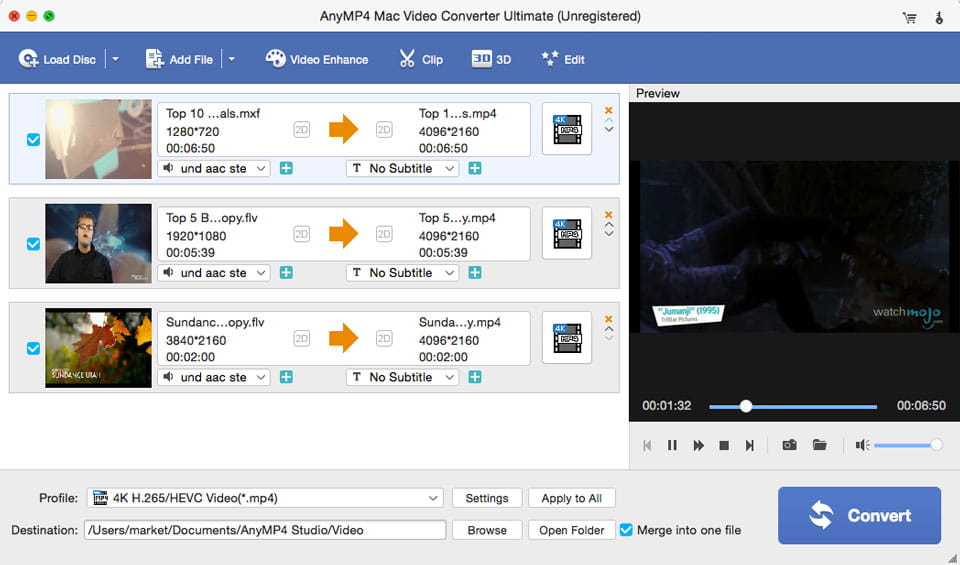
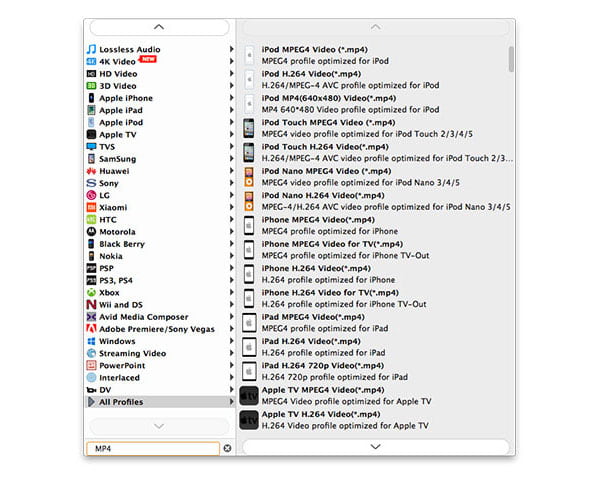
Step 2 Then choose the output format you need from the Profile list. You can choose Mac compatible video formats like MOV, MP4 from "General Video" category or portable devices category like iPhone, iPad, etc. Then, click "Browse" button to choose destination folder for saving output files.
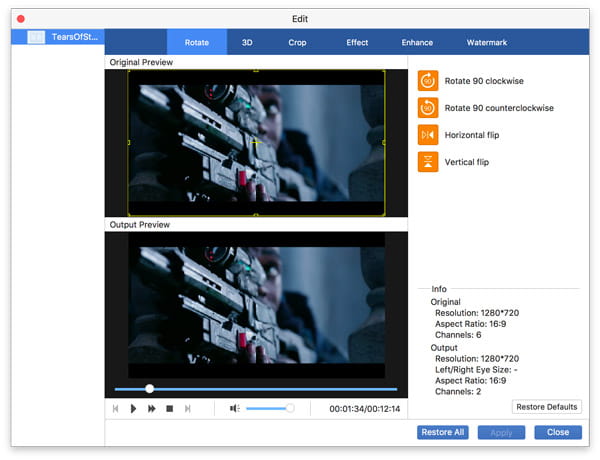
Step 3 Before converting, you can do some edit for the output file like adjusting video effect, clipping video, cropping video, merging video files into one, setting output parameters, etc. After editing, click "Convert" to start converting video files on your Mac. After few minutes, you can playback or further edit the converted videos on Mac with QuickTime, iMovie or Final Cut Pro. You can also export these converted videos to your iPhone XS for playback.
If you want to convert videos on Mac, you can check the above methods and find the easiest way for yourself. If you just do some small change of your videos, you can choose QuickTime or Finder to convert your videos. If you want to convert various video formats, the universal video converter would be your best option. If you think the tutorial helpful, just share it with your family and friends.

 Free Download
 Free Download


