
M4V just can be used on iTunes and iPod, in other words, iTunes purchased M4V Video have DRM protection which prevent users from converting it to other formats or playing iTunes media with other incompatible players such as PS3, Zune, Creative Zen, etc which support WMV format. In this case, you need to convert M4V to WMV. Use our M4V to WMV converter and follow the below steps you can easily change M4V files into WMV format. Experience for yourself immediately!
What you need?
Software: Video Converter Platinum
OS Supported: Windows 8, Windows 7, Windows XP (SP2 or later), Windows Vista
Hardware Requirements: 800MHz Intel or AMD CPU, or above; 512MB RAM or more
Step 1 Load the M4V videos into the program for conversion
You need to free download the software and install it in your computer. Launch the program to start the conversion.
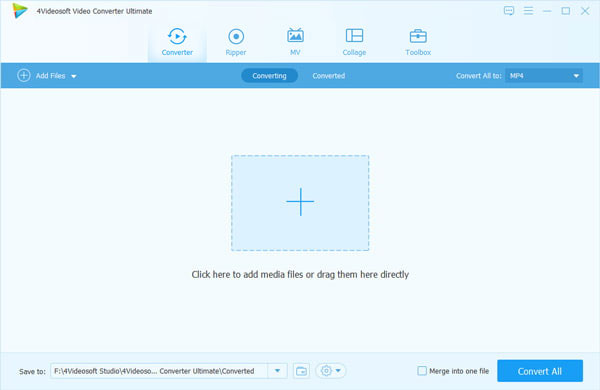
You can add M4V video files into the program by clicking Add file button. All these videos will be listed on the interface. You can use the preview screen to watch them.
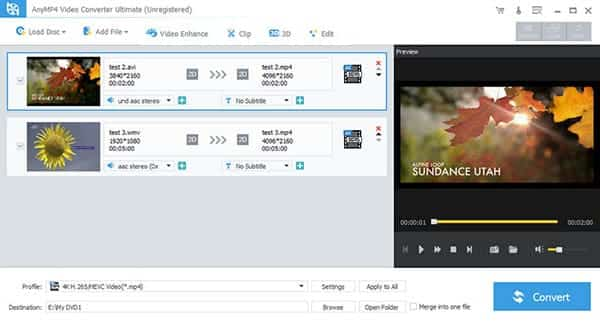
Step 2 Select from Profile and Destination
Choose WMV video format and go to Destination option, you should click "Browse" button to select a folder to store all converted videos.
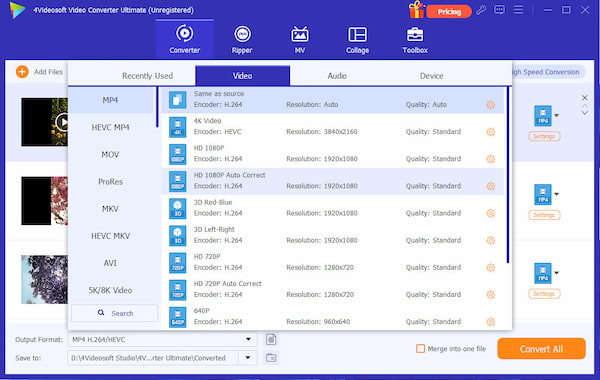
Customize your output videos, you can set various effects for satisfying more needs. When you convert the interlaced video formats, you can check the Deinterlacing function to avoid mosaics on the picture.
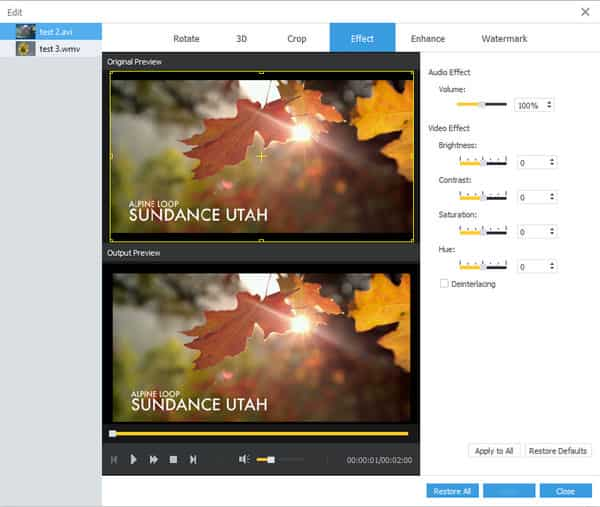
Step 3 Start conversion
The last step is just click "Convert" button, then it shall be finished by itself. When it completed, it shall remind you and then you can play these converted files on various devices.

 Free Download
 Free Download


