
When videos are ripped from a DVD to your computer, they are often ripped to the VOB format. If you want to put that video on a portable media player so you can watch it on the go, chances are that your portable device won't be able to read that file. Divx supported formats (AVI, MPEG, etc.) are more commonly supported by portable media players.
In this guide we will explain how to convert VOB to DivX format step by step with Video Converter Platinum - a complete solution for video conversion which supports all kinds of video formats and converting them to the popular video formats including converting VOB to DivX of course.
Software: 3D Converter
OS Supported: Windows 8, Windows 7, Windows XP (SP2 or later), Windows Vista
Hardware Requirements: 800MHz Intel or AMD CPU, or above; 512MB RAM or more
Step 1 Import VOB files you want to convert
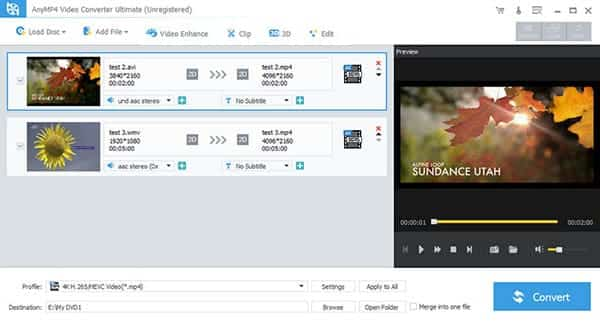
Add any VOB video file from the "Add File" button. Or click "File" to open the file menu, then select "Add File" to load source files you want to convert. Then click Play to preview them before conversion.
Step 2 Proper destination and target format
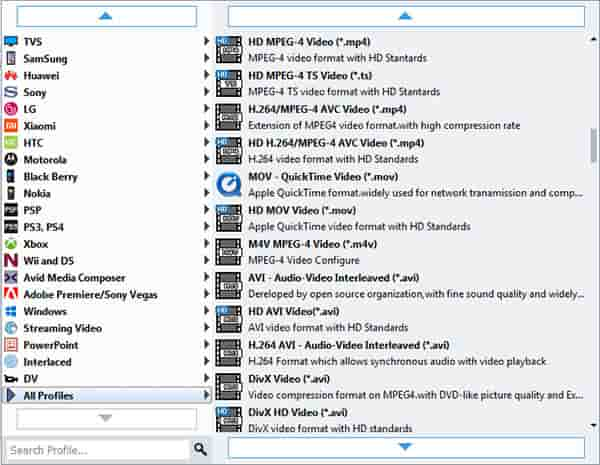
This software can convert video to various video formats for iPod, PSP, Zune, cell phone, etc. Click the Profile drop-down list to select the format you prefer for each added file. Choose your target folder to save the converted DivX files by clicking Browse button.
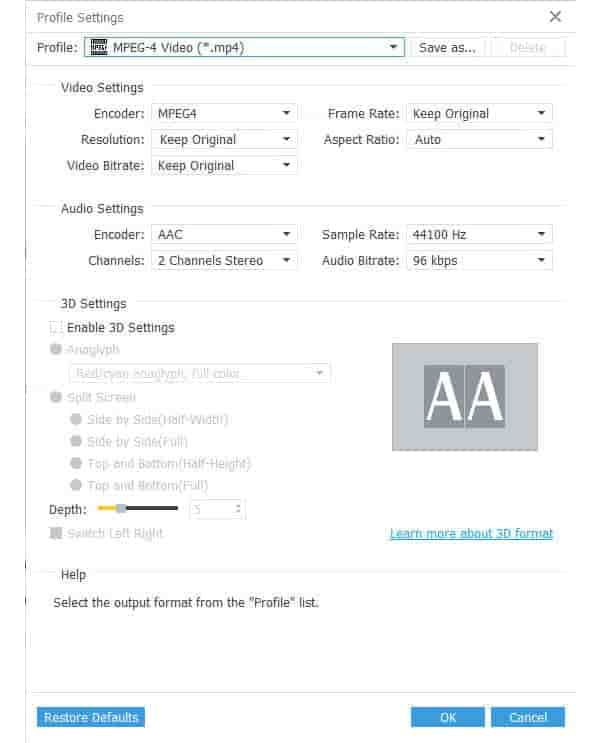
Tip: If you want to customize the output quality, click the "Settings" button to open the Settings panel, where you can set resolution, frame rate, video bit rate, audio bit rate, sample, etc. You also can create a Settings profile and save it, and then you won't have to set the same settings every time. If you don't want to do these settings, the default settings will just work perfectly.
Step 3 Convert VOB to DivX
Now all that's left to do is to click the "Start" button and away we go. Wait for the VOB to DivX conversion process is finished.

 Free Download
 Free Download


