
Nowadays, MKV has become popular in the cartoon and anime fan-subbing community since it supports multiple audio and subtitle tracks in the same container while cell phone either common mobile phone or smart phone or fashionable iPhone also becomes more and more popular. Therefore, maybe you need to convert MKV files to 3GP. Then this MKV to 3GP converter is your right choice. It is a professional converter that enables you to convert MKV videos to 3GP, MOV, ASF, AVI, WMV, and many other popular formats with fast conversion speed and best quality. With its user-friendly interface and fast speed, it makes MKV to AVI conversion routine quite simple.
What you need?
Software: MKV Video Converter
OS Supported: Windows 8, Windows 7, Windows XP (SP2 or later), Windows Vista
Hardware Requirements: 800MHz Intel or AMD CPU, or above; 512MB RAM or more
Step 1 Load the MKV video files
Let's take a look at how to convert MKV to 3GP with MKV to 3GP Converter. Download the latest version of MKV Video Converter (free download). Install and run it.
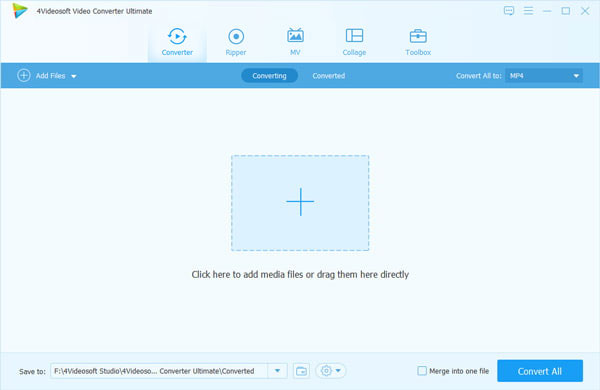
Click the "Add File" button to import the MKV file. Alternatively, you can click "File -> Add File..." to add the MKV file. In a minute your MKV files will be listed on the main panel.
Step 2 Choose the file and find the destination folder
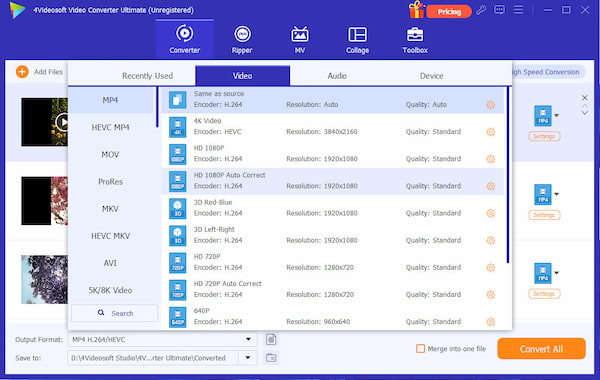
Click the "Profile" drop-down button to choose the output formats you need - 3GP; Click the "Destination" button to find the destination folder for output file.
Tips:
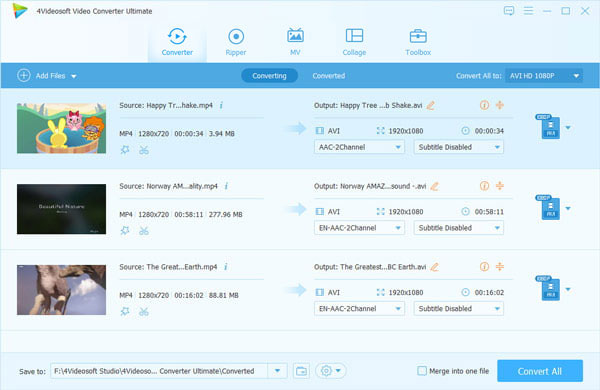
1. Click Snapshot button on the right bottom of the main interface to take a snapshot when playing the video and save them as picture format.
2. Set detailed parameter
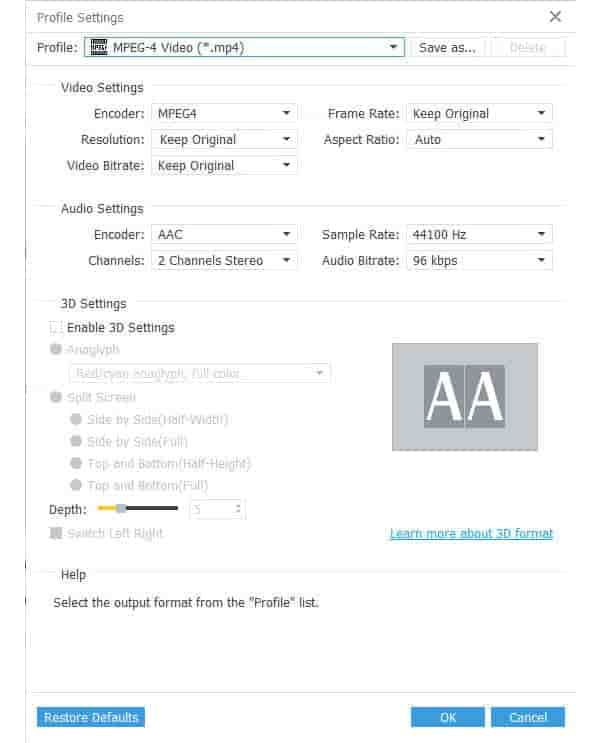
Click "Settings" button on the bottom of the main interface to set detailed parameters for special needs.
Step 3 Click the "Convert" button to begin the conversion
After choosing the format, you only need to click "Convert" button on the toolbar to complete conversion task from MKV to 3GP.
Tips: What's MKV video format?An MKV file is a Matroska file, the Matroska Multimedia Container is an open standard free Container format. It is similar in conception to other containers like AVI, MP4 or ASF, but is entirely open in specification, with implementations consisting mostly of open source software. Matroska file types are .MKV for video (with subtitles and audio), .MKA for audio-only files and .MKS for subtitles only.

 Free Download
 Free Download


