
MOV to AVC Converter is one specific AVC Converter, which is mainly designed to convert MOV to AVC format. MOV to AVC Converter is such powerful AVC video converting software, which not only can convert MOV to AVC but also convert other video formats to AVC format. Besides, this MOV AVC Converter endows with many edit functions to trim, snapshot, adjust effect, rename and so forth.
What you need?
Software: AVC Converter
OS Supported: Windows 8, Windows 7, Windows XP (SP2 or later), Windows Vista
Hardware Requirements: 800MHz Intel or AMD CPU, or above; 512MB RAM or more
Step 1 Add MOV files
Launch and run MOV to AVC Converter, and you will such an interface:
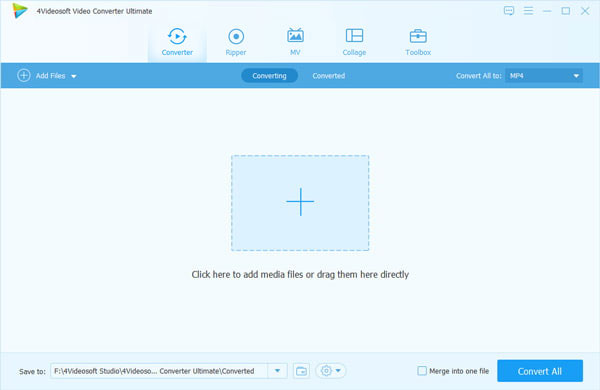
Click "Add Video" button to add MOV video to the MOV to AVC Converter.
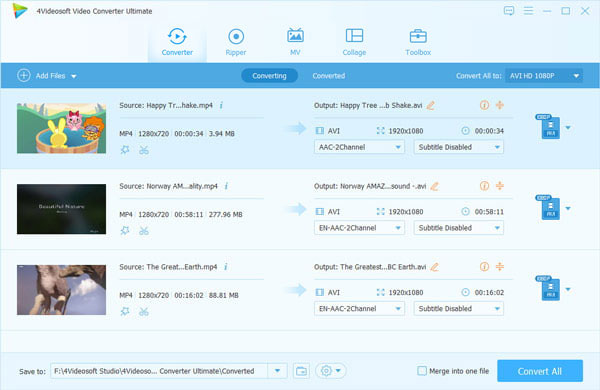
Step 2 Choose output format
Choose AVC as the output format from "Profile". You can also choose the destination for the output video by "Browse".
Step 3 Convert MOV video to AVC
Click the "Convert" button to convert MOV video to AVC format.

 Free Download
 Free Download


