
Focus on MOV format conversion, Wii Video converter completely supports converting XviD to MOV and is also capable to convert almost all the video formats to MOV/AVI with high-level images and sound quality.
In this guide we will explain how to convert XviD to MOV format in a complete solution. Using the simplest user-friendly interface, you can do the conversion job of XviD to MOV as easy as 1-2-3 with unimaginable fast speed and high quality. Have a try!
What you need?
Software: Wii Video Converter
OS Supported: Windows 8, Windows 7, Windows XP (SP2 or later), Windows Vista
Hardware Requirements: 800MHz Intel or AMD CPU, or above; 512MB RAM or more
Free download XviD to MOV converter to install and run it on your computer.
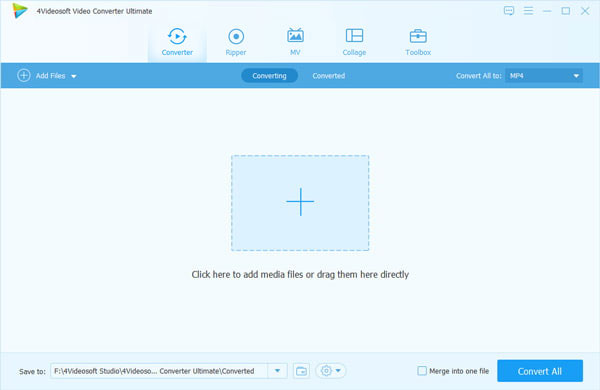
Step 1 Import Xvid files
Click "Add file" icon, you can directly import XviD file. Or Click Add File from File drop-down list or just drag and drop.
Step 2 Output MOV file
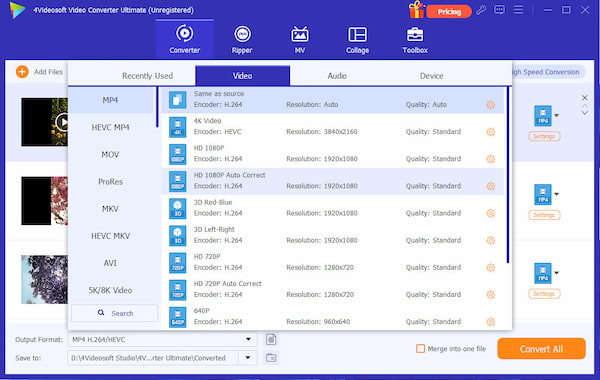
You can set the output settings for the selected file in the following area.
To get MOV files from XviD, please Select MOV as the output format in the drop down list next to Profile filed from bottom menu.
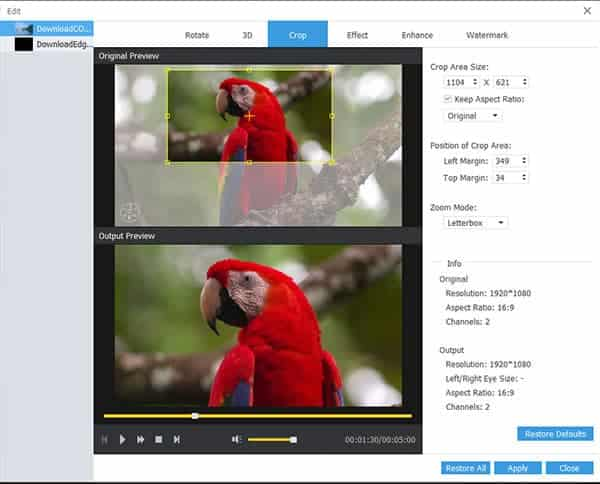
Video cropping
Click "Crop" in the main menu to go to the crop window. The video you select will be displayed automatically. There are four crop values on the lower part of the crop window: Left, Top, Right and Bottom. You can set each value to crop your video and the crop frame will move accordingly.
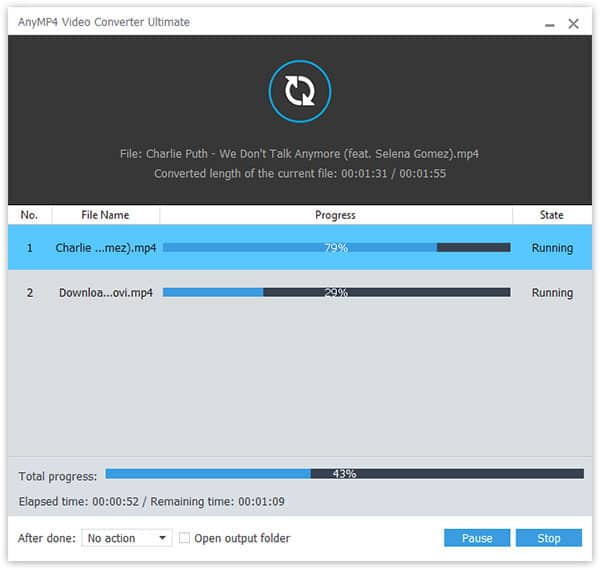
Step 3 Convert XviD to MOV video
Check all the setting above, then hit Start, all XviD file will be converted. The time depends on the file you load and the setting you made.

 Free Download
 Free Download


