
This step-by-step tutorial will show you how to use MKV to AVC Converter to convert AVI, MOV, WMV, MP4, MKV... to AVC (MTS, M2TS, TP, TS, MOD, TOD...) videos, You can also convert common video formats between each other with excellent AVC Converter. You can download it for free from below. The file you download is fully functional and operational, installing and uninstalling process is very easy as well without any adware or spyware.
What you need?
Software: AVC Converter
OS Supported: Windows 8, Windows 7, Windows XP (SP2 or later), Windows Vista
Hardware Requirements: 800MHz Intel or AMD CPU, or above; 512MB RAM or more
Step 1 Select video files
Download this powerful software to a known location. Run the downloaded package and follow on-screen instructions to install it.
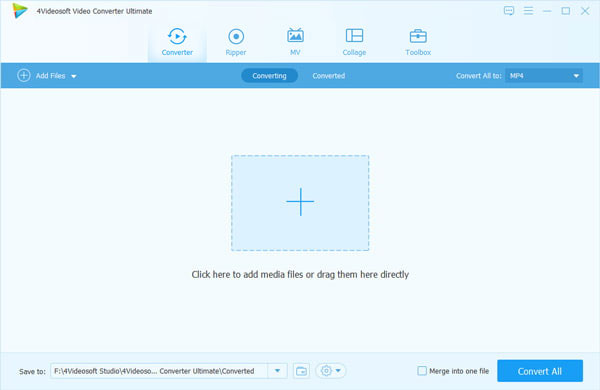
Click "Add file" button to load your MKV video file(s). The files will be added to the conversion list. Choose to convert a single file or a group of files.
Step 2 Choose a format
Click "Profile" drop-down button to choose "MPEG-4 AVC Video" as your output format. Browse to set the location where your converted files should be stored.
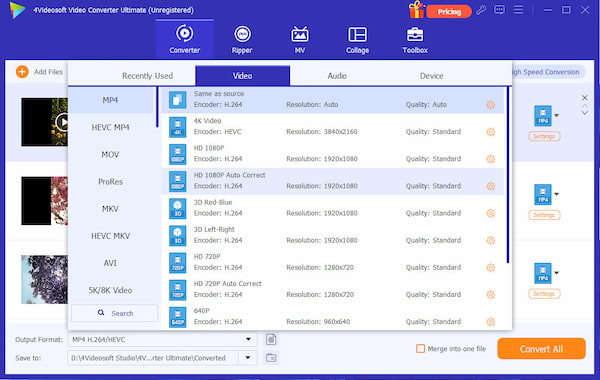
Step 3 Start to convert MKV to AVC
If everything is OK, just click "Convert" The program will convert the selected files automatically. It will take some time, depending on how many files you've added.
Additional:
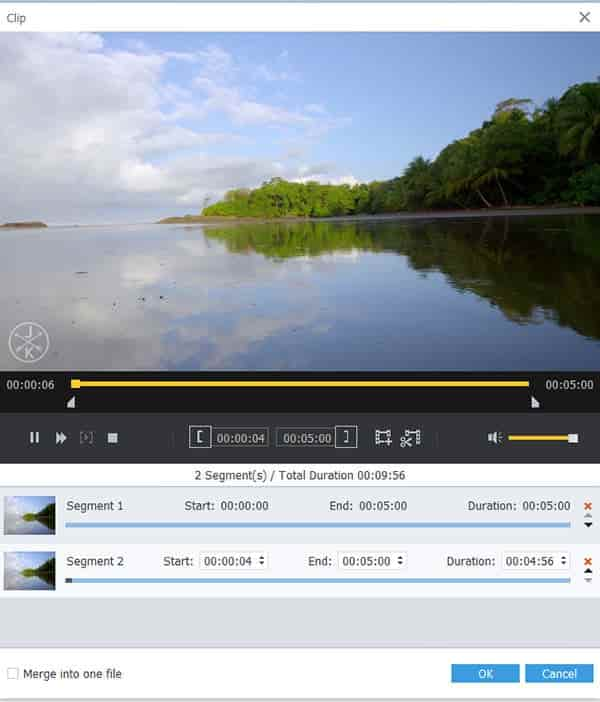
1. Click Trim to open the Video Edit window and capture a clip from the selected video file.
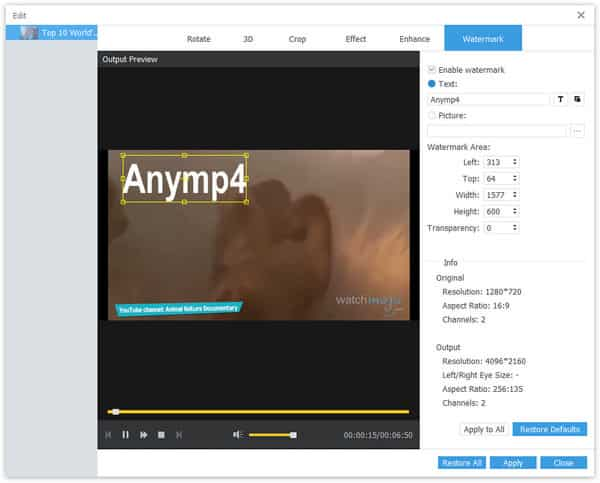
2. Edit text or image watermark for the output video files

 Free Download
 Free Download


