
Advanced in converting files from SD to AVC, SD to AVC Converter is one very simple and easy-to-use AVC converter. Apart from converting videos from SD to AVC, SD to AVC Converter can convert other videos to AVC smoothly as well. Moreover, like other video converters it embraces abundant edit functions to trim video to clips, merge video together, add personal logo and so on. Allowing for assisting more users to convert SD to AVC, the tips below is provides.
Software: 3D Converter
OS Supported: Windows 8, Windows 7, Windows XP (SP2 or later), Windows Vista
Hardware Requirements: 800MHz Intel or AMD CPU, or above; 512MB RAM or more
Step 1 Add files
Free download SD to AVC Converter, launch and run it, and you will see such a striking interface:
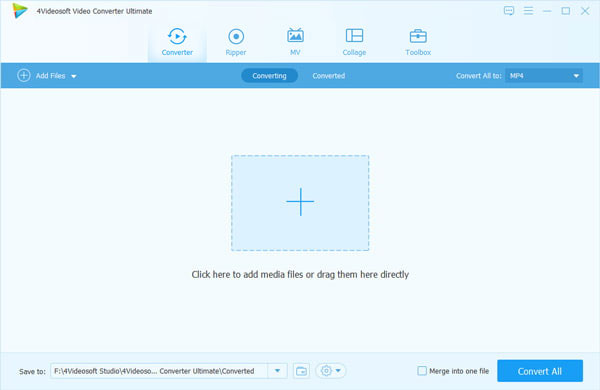
Click "Add Video" button to add AVC video to the SD to AVC Converter or click "File">> "Add File" to add videos.
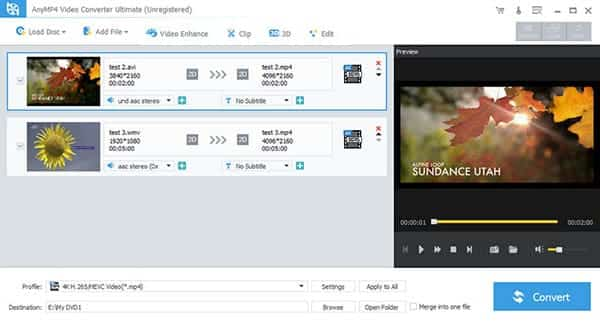
Step 2 Choose output format
Choose AVC from the "Profile" drop-down menu.
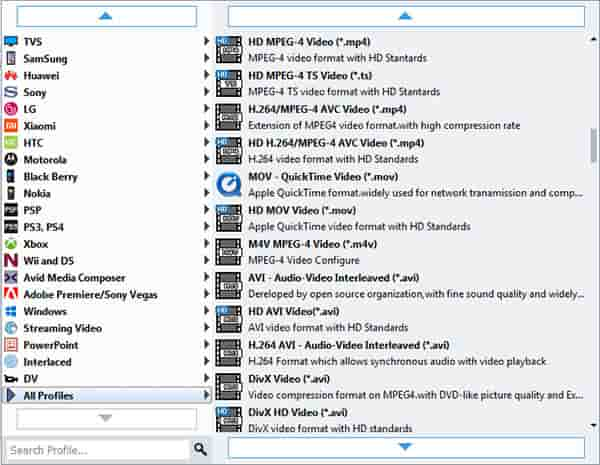
Step 3 Convert SD video to AVC
Click the "Convert" button to convert SD video to AVC format.

 Free Download
 Free Download


