
Thousands of DVDs flood around us, but the portability of DVD can't meet our needs for its encrpytion on it. Now, DVD Ripper Platinum would makes it easy to rip a DVD to iTunes, rip DVD to Computer, even to iPod, iPhone, PSP, etc. The step by step guide shows you how to rip a DVD with DVD Ripper Platinum.
Step 1 Load a DVD to rip for iPhone, iPhone 3G
Double click this DVD Ripper Platinum, then you will see the following screen.
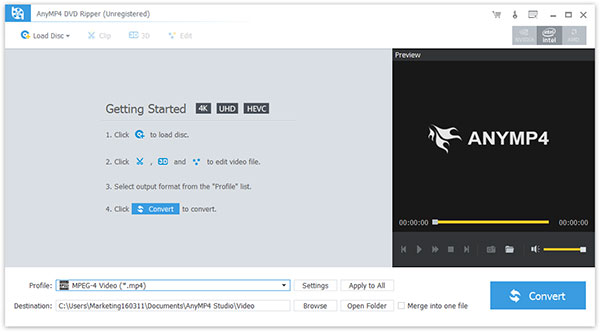
Click "Load DVD" to add you want to rip DVD. You can rip the following DVD files: DVD disc, DVD folder and IFO file.
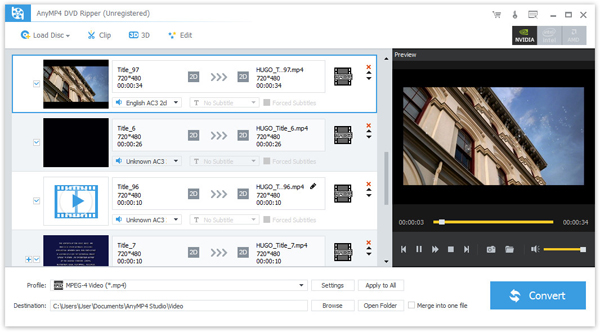
After you load DVD, you would see the following screen:
Step 2 Choose profile
Choose the output format from the "Profile" pull-down menu, find what your player supporting format or the devices.
The supporting output formats can be seen below: MPG, MPEG-1, MPEG-2, MPEG-4, H.264, H.264/MPEG-4 AVC, DivX, XviD, AVI, FLV, MP4, M4V, MKV, MOV, 3GP, 3G2, MTV, SWF, WMV, ASF, DPG, TS, DV, VOB, AMV, WebM, AAC, AC3, AIFF, AMR, AU, FLAC, M4A, MKA, MP2, MP3, OGG, WAV, WMA.
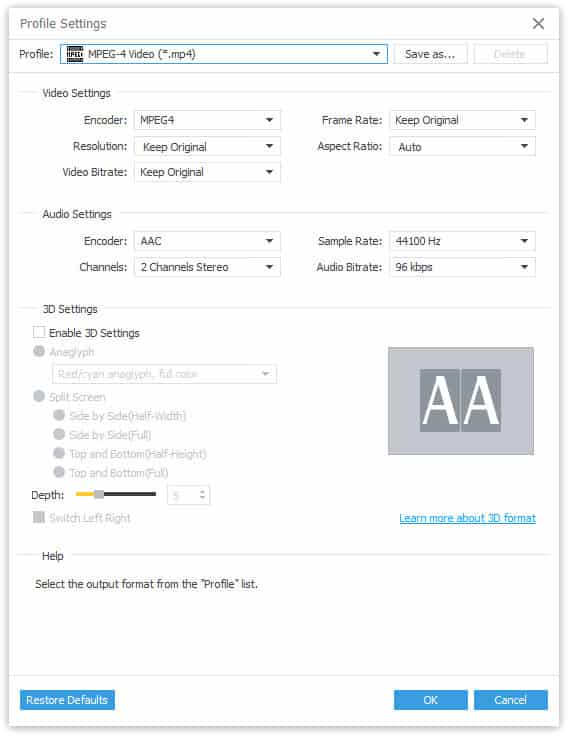
(1) Settings: In order to optimize the output video or audio, you can specifying the video/audio settings. Click "Settings" to open the settings window.
(2) Audio Track and Subtitle
You can set the output settings for the selected file:
Audio Track: Select audio track for your selected file (either a title or a chapter).
Subtitle: Select subtitle for your selected file (either a title or a chapter).
(3) Merge: You also can put you file into one, just click" Merge into one file", that's OK.
(4) Destination: Click the "Browse", you can put the converted file into what you want disk, and in the "Open Folder", you can find the file
Step 3 Begin to convert
Click the "Convert" button to rip DVD.
If you want to edit your DVD video, including trim DVD video, crop DVD video, capture the picture, please visit the next part: How to edit, crop, trim DVD clips take picture?

 Free Download
 Free Download


