
The step-by-step tutorial shows you how to convert HD to XviD. HD to XviD Converter can convert HD video formats to XviD and other files, such as AVI, WMV, 3GP, MOV, VOB, MPG/MPEG2, and FLV (Flash Video), etc. It is not only a conversion tool but also a versatile editing tool. It lets you trim any splendid clips, crop the unwanted black edges of video, and capture pictures from your video, etc.
What you need?
Software: HD Converter
OS Supported: Windows 8, Windows 7, Windows XP (SP2 or later), Windows Vista
Hardware Requirements: 800MHz Intel or AMD CPU, or above; 512MB RAM or more
Step 1 Add HD video files
After downloading and running the HD to XviD Converter, you will see the following main interface.
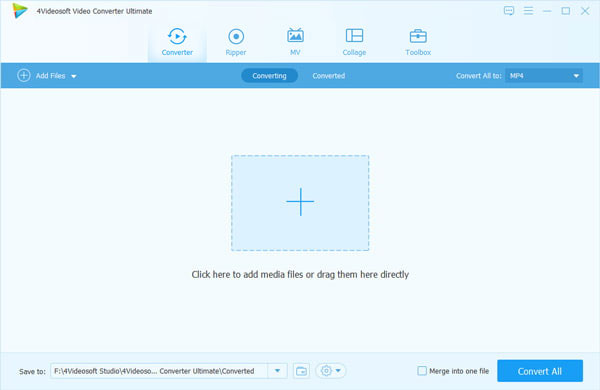
Just click "Add File" on the interface to load videos in any format of HD to the HD to XvoD converter.
Tip: Click "Snapshot" button on right part of main interface to take a snapshot when playing the video and save as picture file.
Step 2 Make Destination
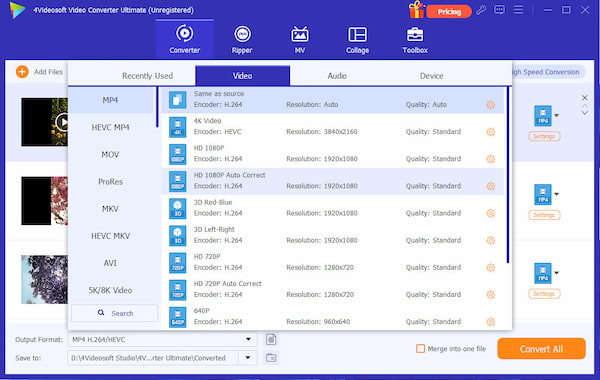
Output format selection: Click drop-down button from "Profile" to find the video style type named XviD Video (*.avi) as the output format.
Destination: After completed selecting output format, you can select the folder to save the converted file. Apply to all: Click "Apply to all" to apply the previous settings for all the selected files in the file list.
Step 3 Convert videos to XviD
Click the big Convert button to start converting the HD videos to XviD file.
Ok, the task of converting HD video to XviD has been completed, you can enjoy the converted files to any place it can.
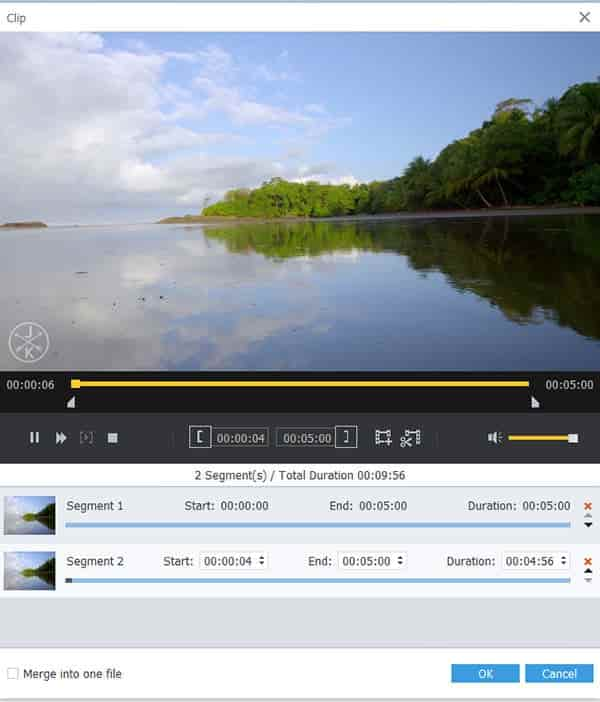
Make use of more editing functions like effect, trim, crop and watermark ... to optimize output effects! Take Trim for example: "Trim" function allows you to pick up any part of your video to convert. You can just convert a part of your video that you want.
You can also pre-view original video files you load one by one by clicking Play button
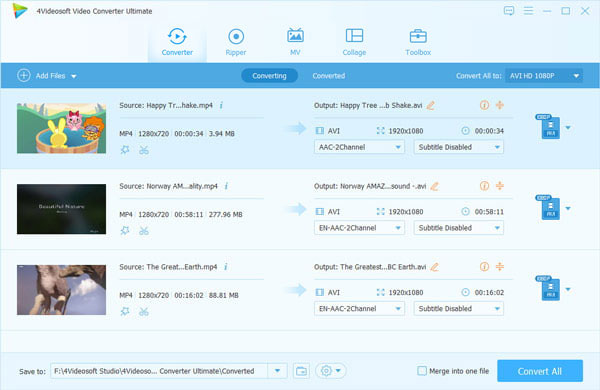
Take a few minutes to free download this HD to XviD Converter and have a try. I believe: once you have a try, you will know how powerful and easy to use.

 Free Download
 Free Download


